Complete Your Keller Williams Marketing Profile
Complete Your KW Marketing Profile
TAThe AMS TeamEditorial Team · January 17, 2025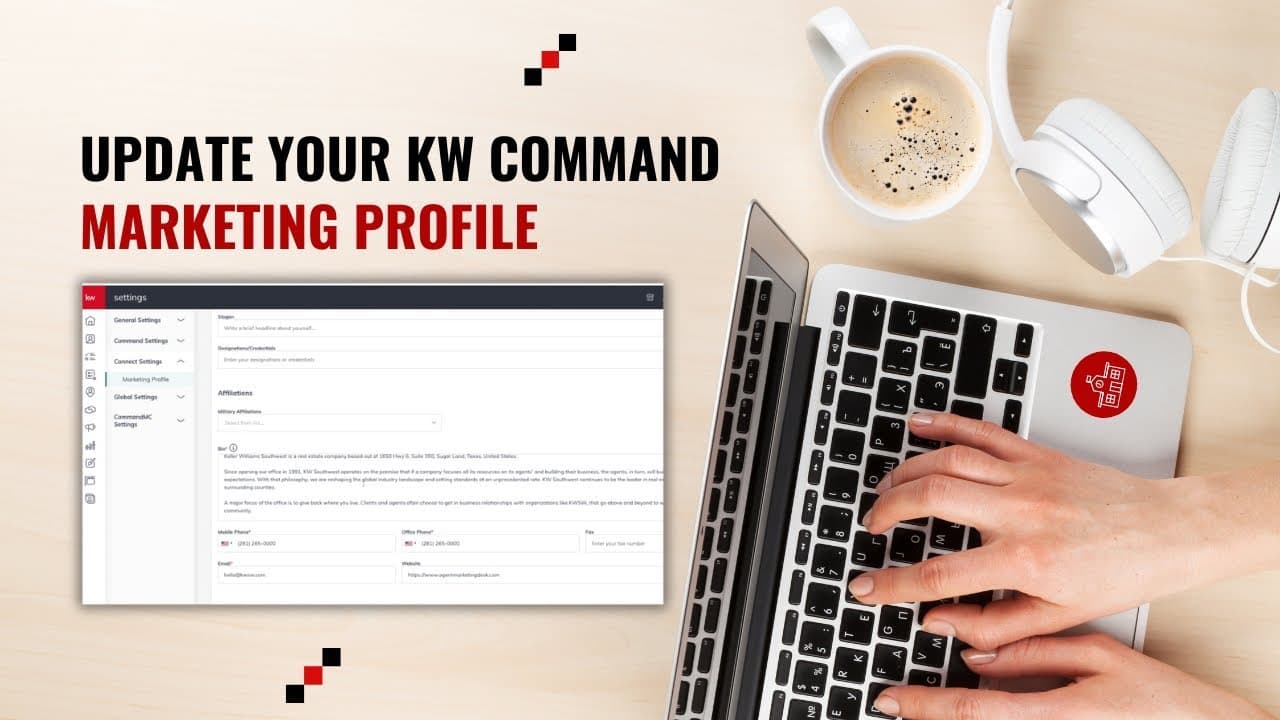
Complete Your KW Marketing Profile
Introduction
Setting up your Marketing Profile in Command is a crucial step for real estate agents using Keller Williams (KW) platforms. It ensures your information is seamlessly integrated into the marketing content you send to consumers, as well as your KW App and Site. By automatically populating your details, you save time and present a consistent professional image. This profile includes your photo, logo, contact information, and other details that help you stand out as an expert agent.
Here is a video on How to Update Your Marketing Profile in KW Command (Step-by-Step for Agents)
Step-by-Step Instructions
1. Access
- Log in to https://agent.kw.com using your Keller Williams login credentials.
- Click your Name in the top right corner, and then select Settings.
- Click the drop-down arrow beside Connect Settings and select Marketing Profile.
2. Branding and Images
- Upload your agent profile photo (My Photo), which is required, and your Team Logo, if applicable.
- Example: Use a professional headshot for your profile photo to convey trust and approachability.
- Note: The Team Logo will appear at the top left of every page on your KW Agent Site. If no Team Logo is added, your name will be displayed.
3. My Details
- Enter primary details about you as an agent, such as your first name, last name, and slogan.
- Optional fields include Agent License Number, Military Affiliation, biography, and contact information.
- Example: Craft a compelling biography that highlights your experience and unique selling points.
- If you need a bio, use our Agent Bio Chatbot: https://agentmarketingdesk.com/pages/agent-bio-chatbot
- Note: The Military Affiliation field is new and not yet connected to public profiles but is used in referral partner searches.
4. Market Center / Brokerage
- Enter your Market Center information and DBA logo.
- Example: Ensure your DBA logo is high-quality to maintain professionalism across platforms.
- Note: If you don't have access to your Market Center DBA logo, you can find these on the KW Logos and Branding resources page.
5. Compliance
- Enter any national, state, or local legal information or images needed to stay in compliance.
- Example: Include disclaimers or fair housing logos as required by your state.
- This information will populate the footer of every page on your KW Agent Site.
6. Social
- Add social media profiles to your profile, ensuring to include the full web address.
- Example: Include your Facebook, LinkedIn, and Instagram profiles to enhance your online presence.
- These will populate on your KW.com agent profile, KW Agent Site homepage footer, and navigation drop-down.
7. Save
- Click Save. Changes may take a few hours to populate on KW.com but should only take around 10 minutes to populate KW Agent Sites and the KW App.
Key Takeaways
- Completing your Marketing Profile ensures your information is automatically added to marketing content, saving time and effort.
- Ensure all required fields are completed to avoid errors in marketing tools like SmartPlans.
- Regularly update your profile to reflect current information and branding.
FAQs
Frequently Asked Questions:
- What is the purpose of the Marketing Profile?
- The Marketing Profile ensures your information is automatically added to marketing content, saving time and maintaining consistency.
- What happens if I don't complete the required fields?
- Missing required fields can cause errors in marketing tools, such as SmartPlans.
- How often should I update my Marketing Profile?
- Update your profile whenever there are changes to your contact information, branding, or other relevant details.
- Can I add multiple social media profiles?
- Yes, you can add multiple social media profiles by including their full web addresses.
- What should I do if I don't have a Team Logo?
- If you don't have a Team Logo, your name will be displayed instead on your KW Agent Site.
- How do I update my headshot on my KW Command Agent Website?
- Update your headshot in your Marketing Profile, and the changes will automatically sync to your KW Agent website within approximately 10 minutes.
- What image specifications should I follow?
- Use a high-resolution, professional headshot in JPG or PNG format. The image should be clear, well-lit, and properly cropped to show your face.
- How long does it take for profile changes to appear?
- Changes typically appear on KW Agent Sites and the KW App within 10 minutes, while KW.com may take a few hours to update.
- Can I customize which information appears on my KW Agent Site?
- Yes, you can control what information displays by selectively filling out fields in your Marketing Profile. However, certain required fields must always be completed.
By following these steps, you can ensure a comprehensive and professional Marketing Profile that enhances your visibility and efficiency in your real estate marketing efforts. If you have any further questions or need additional guidance, feel free to reach out. I’m here to help!
Frequently asked questions
Where do I find the Marketing Profile in Command?+
Log in at agent.kw.com, click your name in the top right corner and select Settings, then click the drop-down arrow beside Connect Settings and select Marketing Profile.
What is the Marketing Profile actually for?+
It feeds your photo, logo, and contact details into the marketing content you send consumers, plus your KW App and KW Agent Site, so your information populates automatically instead of being retyped each time.
What happens if I leave required fields blank?+
Missing required fields can cause errors in marketing tools such as SmartPlans, and your site may show blank fields.
How long do profile changes take to appear?+
Around 10 minutes for KW Agent Sites and the KW App. KW.com can take a few hours.
What if I do not have a Team Logo?+
Your name is displayed instead at the top left of every page on your KW Agent Site.
What image should I use for my headshot?+
A high-resolution, professional headshot in JPG or PNG. It should be clear, well lit, and cropped to show your face.
How do I update the headshot on my KW Command agent website?+
Update it in your Marketing Profile. The change syncs to your KW Agent website in roughly 10 minutes.
Where do the compliance details show up?+
Any national, state, or local legal information or images you enter, such as disclaimers or fair housing logos, populate the footer of every page on your KW Agent Site.
Where do my social media links appear?+
On your KW.com agent profile, the footer of your KW Agent Site homepage, and the navigation drop-down. Enter the full web address for each one.