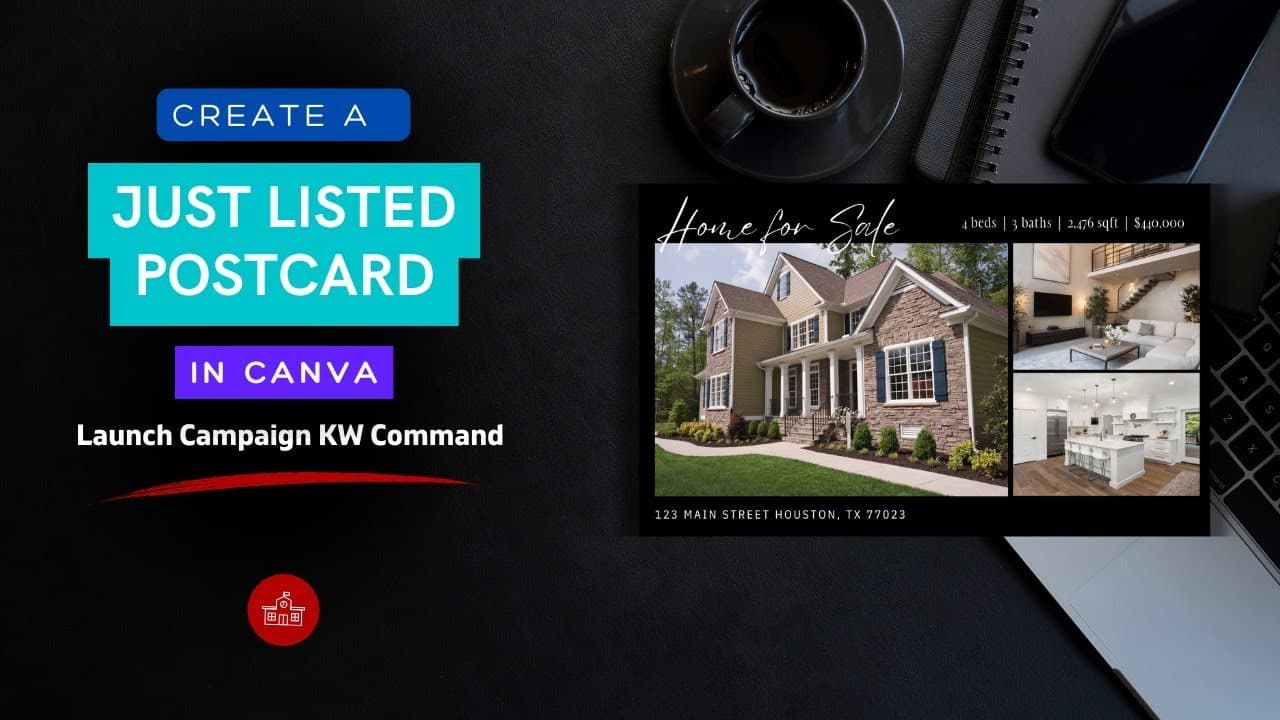
How to Create a Just Listed Postcard with Canva & KW Command for Keller Williams Realty Agents
Creating a high-impact direct mail campaign doesn't have to be a multi-day ordeal. For Keller Williams Realty agents, the integration between KW Command and Canva allows you to…
TAThe AMS TeamEditorial Team · December 4, 2025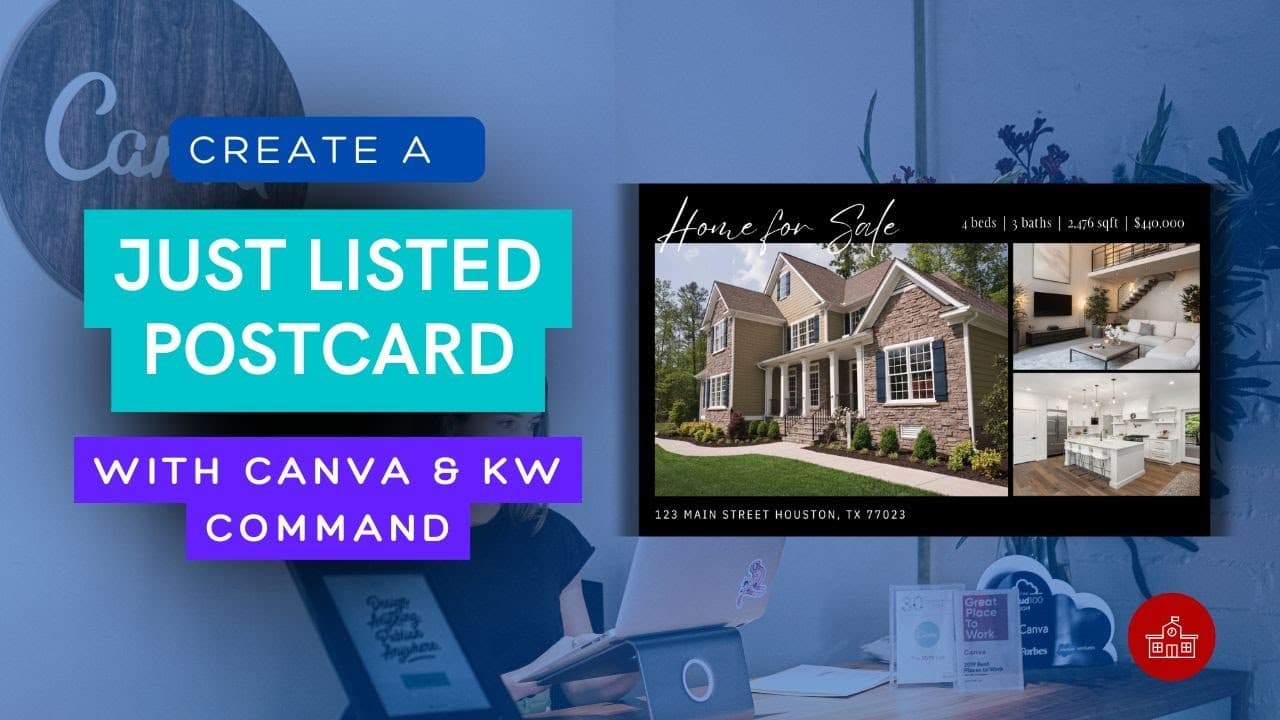
Creating a high-impact direct mail campaign doesn't have to be a multi-day ordeal. For Keller Williams Realty agents, the integration between KW Command and Canva allows you to quickly pull your official listing data and media into a professionally designed template. This tutorial will guide you through the seamless process of designing, customizing, and preparing your "Just Listed" postcard for print, ensuring maximum accuracy and minimal effort.
Here is the video for How to Create a Just Listed Postcard with Canva & KW Command
Find our Canva templates here: design.agentmarketingdesk.com
Step-by-Step Instructions: Launching Your Postcard Campaign
- Access the Template Library: Navigate to design.agentmarketingdesk.com and click the Templates button. This will take you to the curated Canva library.
- Select the Postcard Design: Find and click on the "Just Listed Black and White Postcard for KW Command" template. Click "View template" and then "Use template" to open a copy in your Canva account. (Ensure you are logged into Canva using your KW Command credentials from https://canva.kw.com.)
- Connect the KW Command App: In the Canva editor, select Apps from the left sidebar. Search for "KW" and choose the Keller Williams app. Click Connect and I Agree to establish the connection and sync your Command data.
- Find and Import Your Listing: Go to the Listings tab within the Keller Williams app sidebar. Search for your property using the address or MLS number.
- Replace Media with Listing Photos: Click on your listing to view its media. Drag and drop the desired exterior and interior photos from the sidebar directly onto the existing placeholder images on the postcard template to automatically replace them.
- Update Front Page Details (Page 1): Select the property address text box on Page 1 (Front) and input the correct, full address. Then, update the contact information (Name, Phone, Email) in the designated area.
- Sync Property Details (Page 2): Navigate to Page 2 (Back). In the Keller Williams sidebar, click the Beds, Baths, and SQ FT fields to automatically update the property details text on the postcard.
- Refine the Property Description: Select the main property description text box. If the description is too long, use the Magic Write tool: right-click the text box, choose Magic Write, and select "Shorten". Click Replace and perform any final manual formatting.
- Finalize Back Page Details and Branding: Update your contact information on Page 2. Upload your local KW branding/logo (e.g., KW Southwest) via the Uploads folder and position it in the logo area.
- Download for Professional Print: Click Share , Download. For the highest quality print, change the File Type to PDF Print. Ensure "Select pages" is checked, and download Page 1 and Page 2 as individual, separate PDF files.
Agent Marketing School powered by Agent Marketing Desk
Frequently asked questions
Where do I find the Just Listed postcard template?+
Go to design.agentmarketingdesk.com and click Templates, then select the Just Listed Black and White Postcard for KW Command. Click View template, then Use template to open your own copy in Canva.
How do I connect KW Command to Canva?+
In the Canva editor, select Apps from the left sidebar, search for KW, and choose the Keller Williams app. Click Connect and I Agree to sync your Command data. Make sure you are logged into Canva through canva.kw.com first.
How do I pull my listing photos in?+
Open the Listings tab in the Keller Williams app sidebar, search by address or MLS number, then drag and drop the exterior and interior photos straight onto the placeholder images to replace them.
Do beds, baths, and square footage fill in automatically?+
Yes. On Page 2, click the Beds, Baths, and SQ FT fields in the Keller Williams sidebar and the property details update on the postcard.
What if the property description is too long for the template?+
Right-click the description text box, choose Magic Write, and select Shorten. Click Replace, then do any final formatting by hand.
How should I export the postcard for printing?+
Click Share, then Download, and change the file type to PDF Print. Check Select pages and download Page 1 and Page 2 as two separate PDF files.
Where does my market center logo go?+
Upload your local KW branding, such as the KW Southwest logo, through the Uploads folder in Canva, then position it in the logo area on the back page.