How to Create and Manage Your @KW.com Gmail Account
Title: How to Create Your @KW.com Email Account
TAThe AMS TeamEditorial Team · January 20, 2025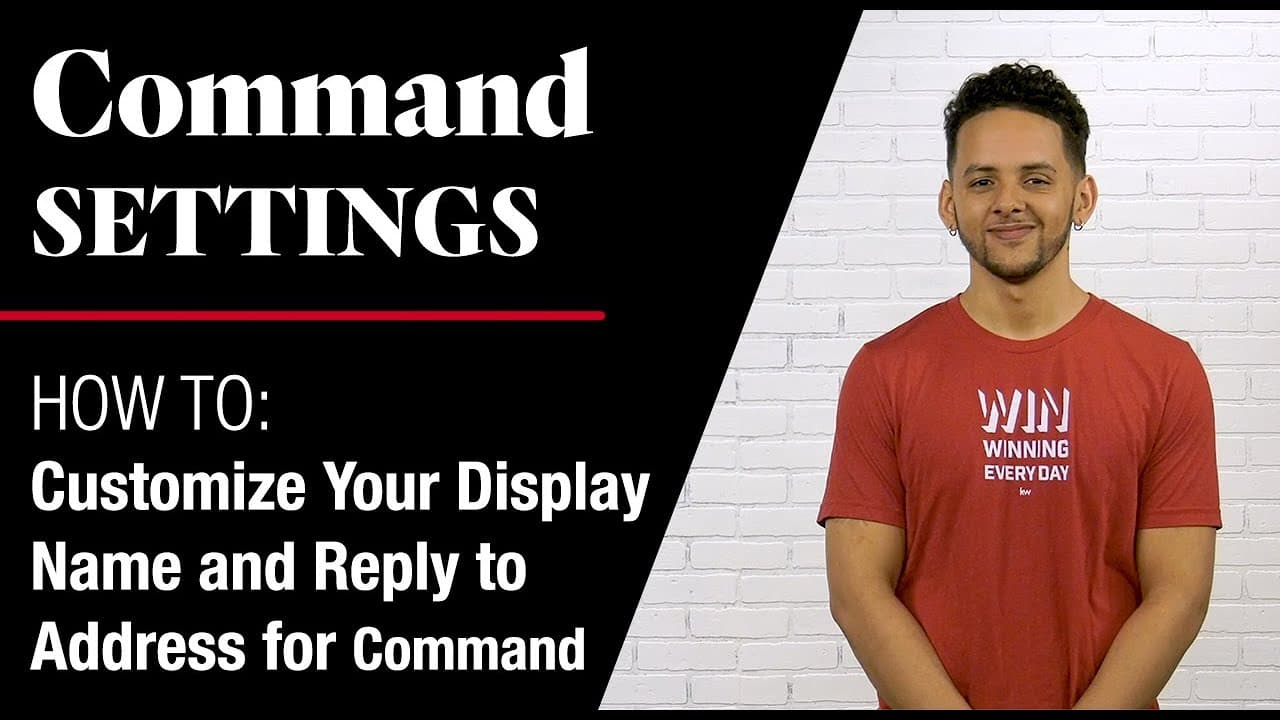
Title: How to Create Your @KW.com Email Account
Introduction: Creating your @KW.com Gmail account is an essential step for every Keller Williams agent. This KW-branded Google account offers access to core Google apps like Gmail, Drive, Google Docs, Sheets, and Slides, along with unlimited storage capacity in Google Drive. These tools are designed to enhance productivity and streamline communication, crucial for effective real estate marketing.
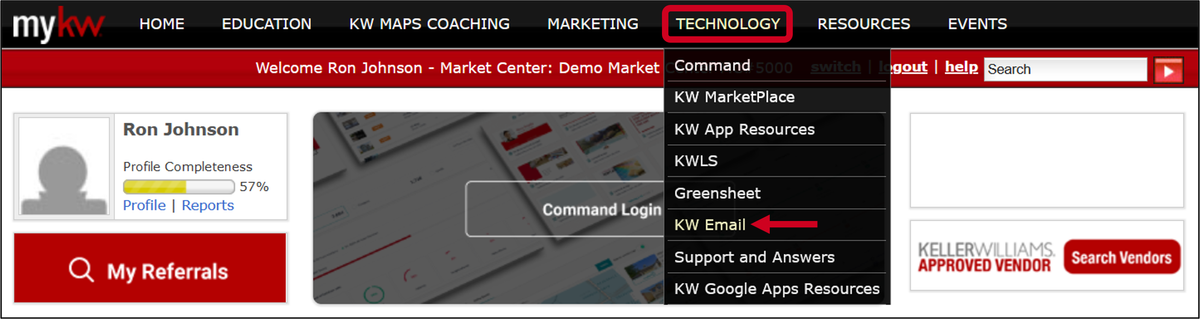
Step-by-Step Instructions:
1. Access the KW Portal:
- Visit http://mykw.kw.com.
- Hover over the "Technology" tab located at the top of the page.
- From the drop-down menu, select KW Email.
2. Initiate the Signup Process:
- Click on Sign Up to begin creating your email account.
3. Choose Your Email Address:
- Select the desired domain from the drop-down list (e.g., @KW.com).
- Opt for an automatically generated email address for immediate use, or create a custom one, which may take up to 1 business day for approval.
4. Set Your Password:
- Enter a secure password between 8-20 characters, including at least one uppercase letter, one lowercase letter, and one number.
- Re-enter the password to confirm.
5. Provide a Recovery Email:
- Use a personal, non-KW email address for password recovery to ensure you can always regain access.
- Click Create Email once all fields are completed.
Best Practices:
- Utilize Unlimited Storage: Leverage Google Drive’s unlimited storage for organizing property documents, marketing materials, and client information.
- Secure Your Account: Regularly update your password and ensure your recovery email is active.
- Brand Consistency: Use your KW email for all professional correspondence to maintain brand consistency.
FAQs:
1. How long does it take to approve a custom email address?
- Approval typically takes around 1 business day.
2. What should I do if I forget my password?
- Use your recovery email to reset your password easily.
3. Can I use special characters in my email address?
- Only letters, numbers, hyphens, periods, and underscores are allowed.
4. How do I access my KW Gmail account after setup?
- Go to Gmail and enter your @KW.com email address and password.
5. What if I want to change my email address later?
- You can request a new email address, but note that approval processes apply.
6. Is there training available for using Google apps effectively?
- Yes, KW offers various resources and training sessions to optimize your use of Google apps.
7. Can I forward emails from my KW account to another email?
- Yes, set up email forwarding in your Gmail settings.
8. What happens if I leave Keller Williams?
- Refer to KW policies regarding email access post-departure.
9. Can I access my KW email on mobile devices?
- Absolutely, configure your email settings on your smartphone or tablet.
10. Is there a limit to the number of emails I can send daily?
- Standard Gmail sending limits apply, which are typically sufficient for regular use.
Let me know if you have any more questions or need further assistance with setting up your KW email account. I'm here to help!
More to learn
Command Settings - How To Customize Your Display Name and Reply to Address for Command Email
Learn How To How To Customize Your Display Name and Reply to Address for Command Email
Here is a video
Whether you want to run ads through social media platforms using Campaigns, track the interactions you have with your contacts through Gmail, or if you want to connect Twilio to be able to send texts through Command, you will need to connect certain applications to Command.
Learn How To How To Track and Manage Your Command Email. Here is a video
Frequently asked questions
How do I create my @KW.com email account?+
Go to mykw.kw.com, hover over the Technology tab, and select KW Email. Click Sign Up, choose your domain and address, set a password, add a recovery email, then click Create Email.
How long does a custom email address take to approve?+
About 1 business day. An automatically generated address is available for immediate use if you do not want to wait.
What are the password requirements?+
Between 8 and 20 characters, including at least one uppercase letter, one lowercase letter, and one number.
Can I use special characters in my email address?+
Only letters, numbers, hyphens, periods, and underscores are allowed.
What recovery email should I use?+
Use a personal, non-KW email address so you can always reset your password even if you cannot get into your KW account.
What do I get with a KW Google account?+
Access to Gmail, Drive, Docs, Sheets, and Slides, plus unlimited storage in Google Drive for property documents, marketing materials, and client information.
Can I forward my KW email to another address?+
Yes. Set up email forwarding in your Gmail settings.
Can I change my email address later?+
You can request a new address, but the same approval process applies.