How To Add Your Email Signature Banner To Your KW Email Account
Table of content
TAThe AMS TeamEditorial Team · January 17, 2025
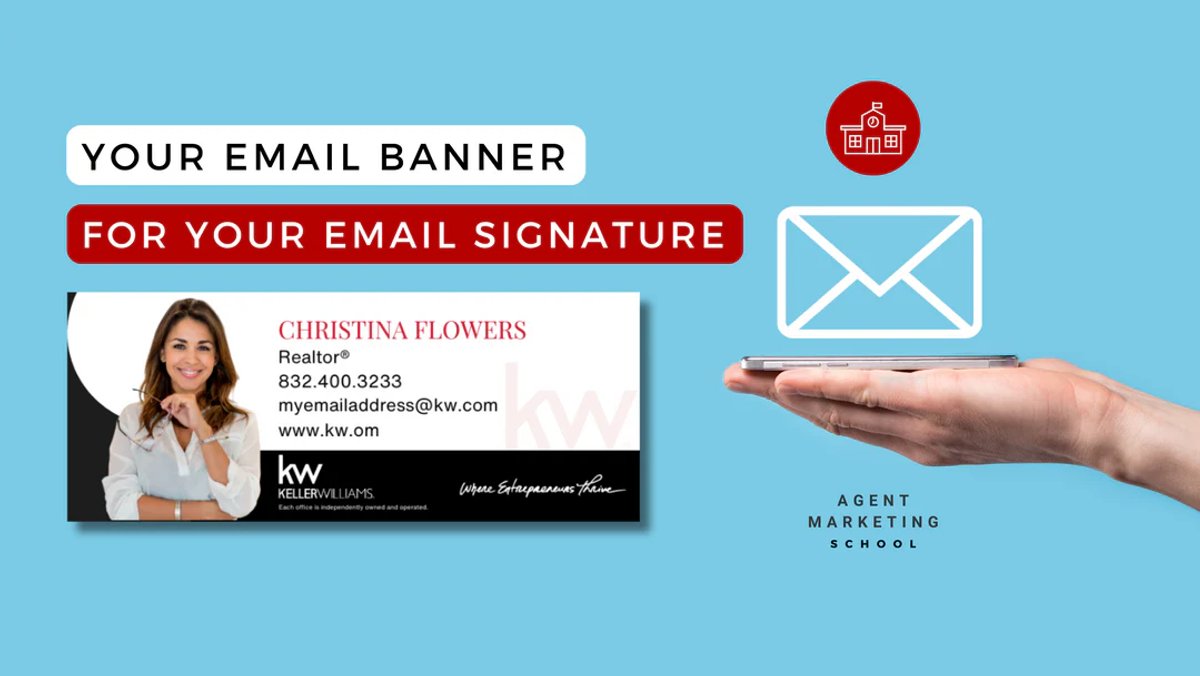
Table of content
Watch this videos to add your email signature banner
Create a Gmail Signature - Step-by-Step Guide
An email signature is text, like your contact information or a favorite quote, that’s automatically added at the end of Gmail messages as a footer.
Add or Change a Signature
1. Overview
Enhance your professional email communications by adding a personalized banner to your Keller Williams email signature. This step-by-step guide will walk you through the process, ensuring your emails reflect your brand identity effectively.
👉 Read the Full Guide Here:
2. Step-by-Step Instructions
1. Open Gmail Settings:
- Log in to your Keller Williams (KW) email account via Gmail. Open Gmail.
- Click the gear icon in the top-right corner and select “See all settings.”
2. Navigate to the Signature Section:
- In the settings menu, go to the “General” tab.
- Scroll down to the “Signature” section.
3. Add Your Banner Image:
- In the signature editor, click the image icon (it resembles a picture).
- Upload your banner image directly from your computer or insert an image URL if it’s hosted online.
4. Adjust the Image:
- Once inserted, click on the image to adjust its size (Small, Medium, Large, or Original Size).
- Ensure the image appears professional and aligns well with your text.
5. Save Your Changes:
- Scroll to the bottom of the settings page and click “Save Changes.”
Manage Multiple Signatures
- Use different signatures for your emails. For example, set a signature default for new emails or replies.
- To change your signature while writing an email, click Insert signature at the bottom of the window.
Edit Signatures
1. Open Gmail.
2. At the top right, click Settings and then See all settings.
3. Under "General," scroll to "Signature" and click the signature you want to edit.
4. Use the text box to make your changes.
- To change the signature name, click Edit.
5. At the bottom, click Save Changes.
Remove Signatures
1. Open Gmail.
2. At the top right, click Settings and then See all settings.
3. Under "General," scroll to "Signature."
4. Click the signature you want to remove.
5. Click Delete and then confirm.
6. At the bottom, click Save Changes.
Add a Signature for "Send Mail As" Feature
- If you use the "Send mail as" feature to send from different addresses, you can add a different signature for each address.
- To select an address, use the drop-down menu above the signature text box on the Settings page.
Best Practices for Real Estate Agents
- Professional Branding: Include your name, title, contact information, and a professional photo.
- Call to Action: Add a link to your website or a current property listing.
- Visual Appeal: Use tools like Canva to design a banner or logo for your signature.
- Consistency: Ensure your signature aligns with your overall branding.
- Test Across Devices: Check how your signature appears on different devices and email clients.
- If you need to create a personalized email signature banner, use our Email Signature Banner Generator tailored for Keller Williams agents:
- KW Southwest Agents:
https://agentmarketingdesk.com/pages/email-signature-banner-kw-southwest
- KW Signature Agents:
https://agentmarketingdesk.com/pages/email-signature-banner-kw-signature
- KW Houston Central agents: https://agentmarketingdesk.com/pages/kwhc-email-signature-banner-generator
By following these steps, real estate agents can create professional Gmail signatures that enhance their email communication and marketing efforts.
Keller Williams (KW) emails use Gmail.
Link for How To Add Your Email Signature Banner To Your Email Account →
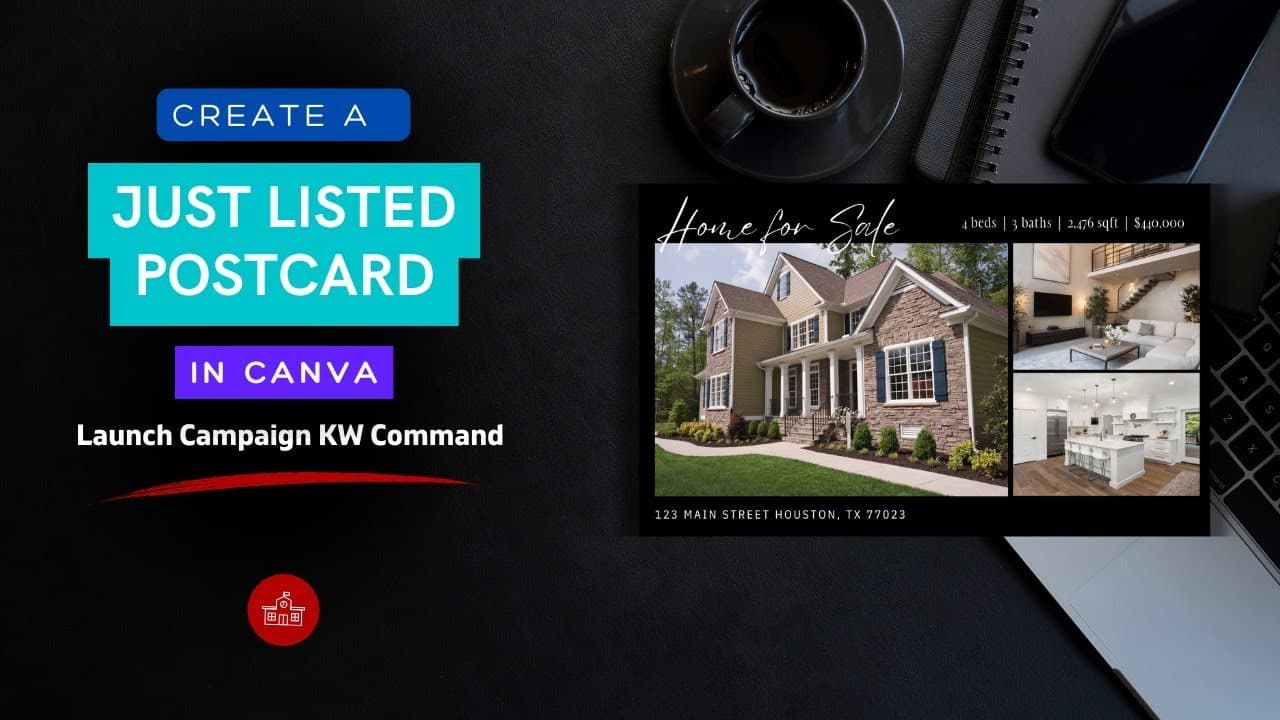
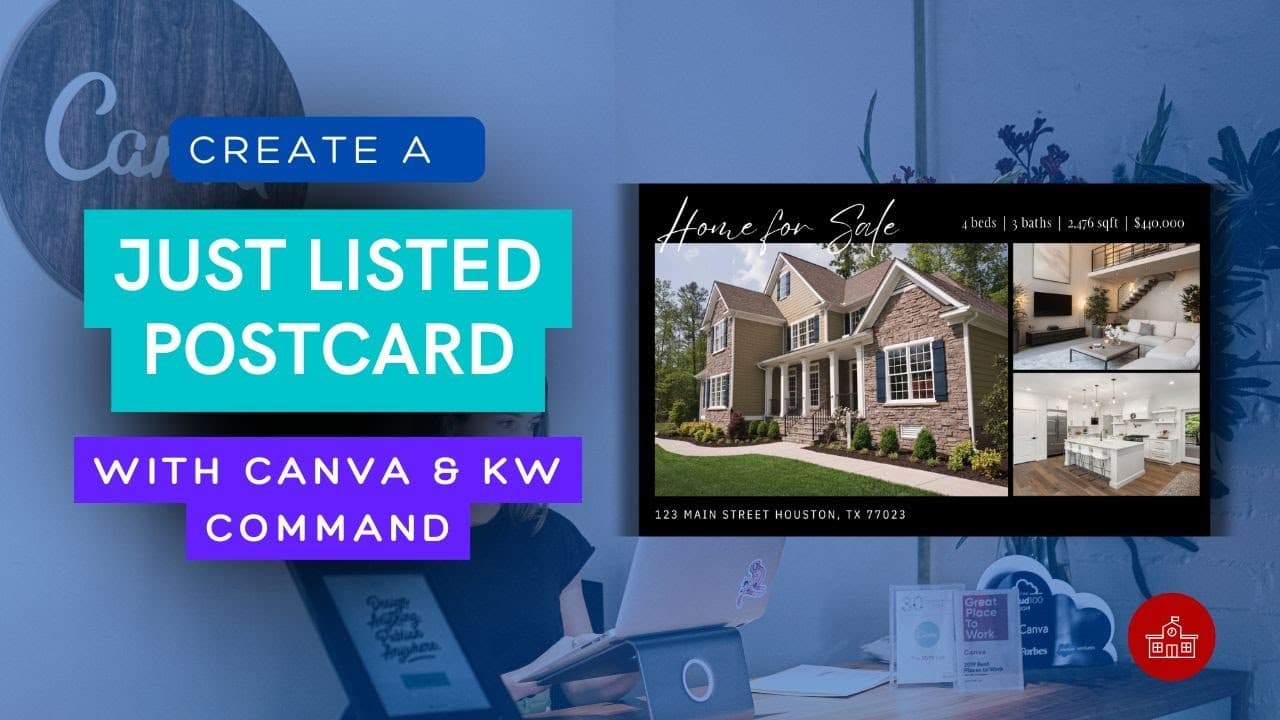
How to create a signature banner (here is a video)
How to add one or more email signatures to your KW email address or Gmail account (Here is a video)
Frequently asked questions
How do I add a banner image to my KW email signature?+
Open Gmail, click the gear icon in the top-right corner and select See all settings. Go to the General tab and scroll to the Signature section. In the signature editor click the image icon, upload your banner from your computer or insert its URL, then scroll down and click Save Changes.
Can I resize the banner after inserting it?+
Yes. Click the inserted image and choose Small, Medium, Large, or Original Size so it sits well alongside your text.
Can I have more than one email signature?+
Yes. Gmail supports multiple signatures, and you can set defaults for new emails and for replies. To switch while writing, click Insert signature at the bottom of the compose window.
How do I edit or delete a signature?+
Go to Settings, then See all settings, then General, and scroll to Signature. Click the signature you want, edit it in the text box, or click Delete and confirm. Click Save Changes at the bottom.
Can I use a different signature for each address I send from?+
Yes. If you use the Send mail as feature, use the drop-down menu above the signature text box on the Settings page to pick an address and give it its own signature.
Does Keller Williams email use Gmail?+
Yes. KW email runs on Gmail, so the standard Gmail signature settings apply.
Where do I get a banner made for my market center?+
Agent Marketing Desk hosts a generator per market center: KW Southwest at agentmarketingdesk.com/pages/email-signature-banner-kw-southwest, KW Signature at agentmarketingdesk.com/pages/email-signature-banner-kw-signature, and KW Houston Central at agentmarketingdesk.com/pages/kwhc-email-signature-banner-generator.