How to Create Your Email Signature Banner for Real Estate Agents
Enhance your professional brand with a custom email signature banner, exclusively for agents at our partner brokerages! Your email signature is more than just contact info. It’s a…
TAThe AMS TeamEditorial Team · January 31, 2025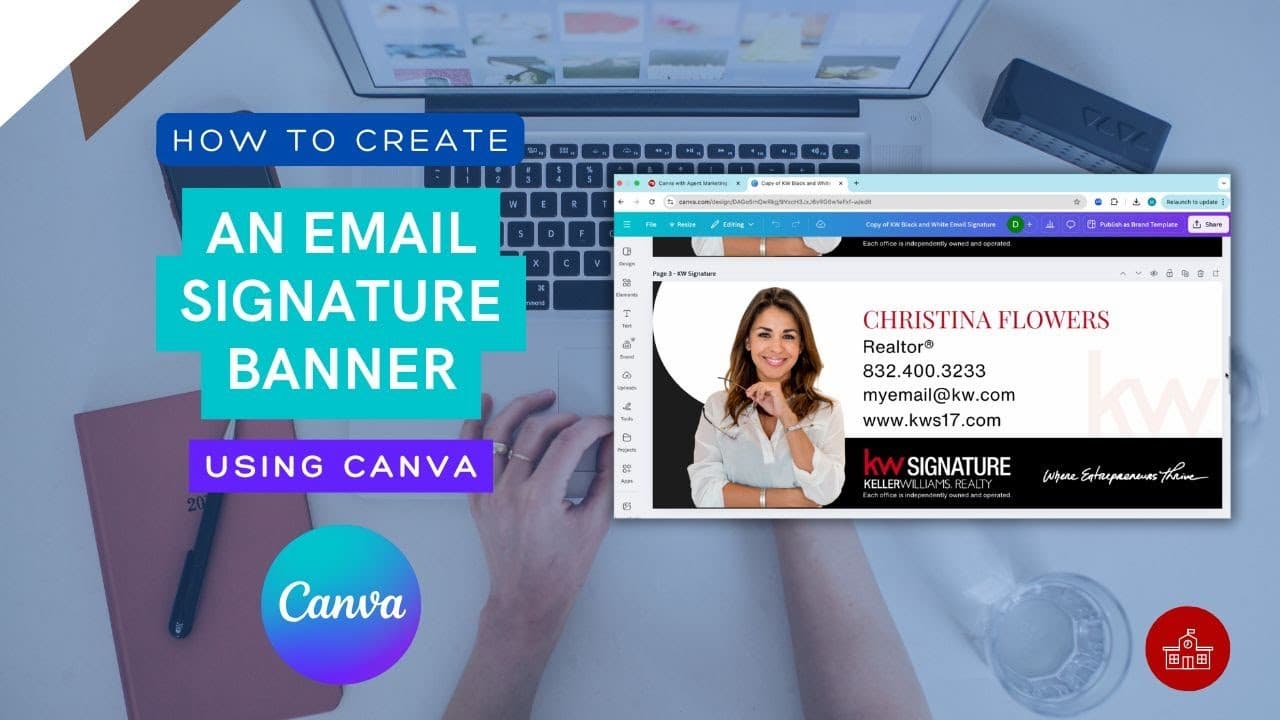
Enhance your professional brand with a custom email signature banner, exclusively for agents at our partner brokerages! Your email signature is more than just contact info. It’s a powerful branding tool that helps you stand out in every email you send.
In this step-by-step guide, we’ll show you how to easily generate your personalized email signature banner using our exclusive tool.
📩 This tool is only available for agents at our partner brokerages. If you’re a partner agent, follow these steps to get started today! Go to our website https://agentmarketingdesk.com
Watch this video tutorial on creating your email signature banner in Canva. You can use our template: https://youtu.be/35UaHULdAXY?si=F8buD43wfB-b5p0k
Here is a video on How to Create Your Email Signature Banner for Real Estate Agents
Need to add your banner to your signature ? Follow these instructions
Step by Step Guide
Step 1: Open Gmail Settings
1. Log in to your KW email address by going to Gmail.
2. Click the gear icon in the top-right corner and select “See all settings.”
Step 2: Find the Signature Section
1. In the settings menu, go to the “General” tab.
2. Scroll down to the “Signature” section.
Step 3: Add Your Image
1. In the signature editor, click the image icon (it looks like a picture).
2. Upload your image directly from your computer or insert an image URL if it’s hosted online.
Step 4: Adjust the Image
1. Once inserted, you can click on the image to adjust its size (Small, Medium, Large, or Original Size).
2. Ensure it looks professional and fits well with your text.
Step 5: Save Your Changes
1. Scroll to the bottom of the settings page and click “Save Changes.”
That’s It!
Your Gmail signature is now updated with your image. It will automatically appear at the bottom of every email you send. Keep it professional, clean, and aligned with your brand.
Frequently Asked Questions (FAQs)
1. Why do I need an email signature banner? An email signature banner enhances your professional image, reinforces your brand identity, and makes every email communication more memorable. It's a powerful marketing tool that helps you stand out and maintain consistency in your communications.
2. Can I use my own images in the signature banner? Yes, you can use your own professional headshot in your signature banner.
3. Will my signature banner work on mobile devices?Yes, our signature banners are designed to be responsive and display properly across all devices, including smartphones and tablets.
4. Can I update my signature banner after it's created? Yes, you can update your signature banner anytime by following the same process. Simply generate a new banner and replace the existing one in your email settings.
5. How do I ensure my signature looks professional? Keep your design clean and simple, use high-quality images, ensure all information is current and accurate.
6. Will the signature banner affect email delivery? No, our optimized signature banners are designed to maintain fast loading times and won't affect email delivery or end up in spam folders.
7. Can I have different signatures for different email purposes? Yes, Gmail allows you to create multiple signatures that you can use for different purposes, such as new client communications, internal emails, or marketing messages.
8. What if I need technical support with my signature banner? Contact our support team through the Agent Marketing Desk website, and we'll be happy to assist you with any technical issues or questions.
9. Where do I generate an email signature banner? You can generate your email signature banner by visiting agentmarketingdesk.com. This tool is exclusively available for agents at our partner brokerages.
Here is a link on How To Add Your Email Signature to your KW Email address
Frequently asked questions
Why do I need an email signature banner?+
It reinforces your brand identity and makes every email you send more memorable. Because it appears on all outgoing mail, it keeps your marketing consistent without any extra effort.
Where do I generate my email signature banner?+
Visit agentmarketingdesk.com and use the Email Signature Banner Generator. The tool is available exclusively to agents at partner brokerages.
Can I use my own images in the banner?+
Yes. You can use your own professional headshot in your signature banner.
Will my signature banner work on mobile devices?+
Yes. The banners are responsive and display properly across smartphones and tablets as well as desktop.
Can I update my banner after it is created?+
Yes. Generate a new banner at any time and replace the existing one in your email settings using the same process.
Will a signature banner hurt email delivery or land me in spam?+
No. The banners are optimized to load quickly and are designed not to affect email delivery.
Can I have different signatures for different purposes?+
Yes. Gmail lets you create multiple signatures, so you can use different ones for new client communications, internal email, and marketing messages.
How do I keep the signature looking professional?+
Keep the design clean and simple, use high-quality images, and make sure every piece of contact information is current and accurate.