Remove Your Headshot Background Easily on Canva for Real Estate Agents
Watch this video to learn how to Remove Your Headshot Background Easily on Canva for Real Estate Agents
TAThe AMS TeamEditorial Team · January 17, 2025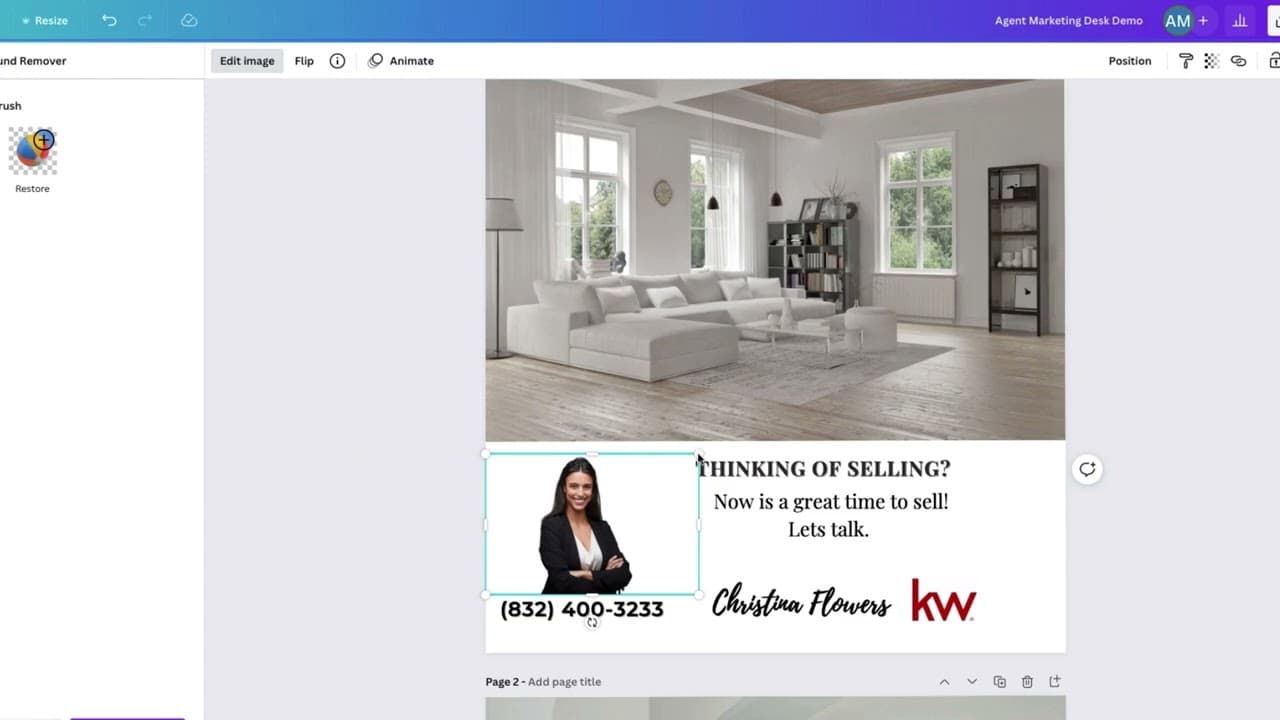
Watch this video to learn how to Remove Your Headshot Background Easily on Canva for Real Estate Agents
Step-by-Step Guide to Remove Headshot Background in Canva
1. Open Canva and upload your headshot photo
2. Select your uploaded image and click the "Edit image" button in the toolbar
3. Look for the "Background Remover" tool in the editing panelNote: This feature requires Canva Pro subscription
4. Click "Apply" and wait a few seconds while Canva automatically removes the background
5. (Optional) Fine-tune the results if needed:
- Use the "Erase" tool to remove any remaining background
- Use the "Restore" tool to bring back any accidentally removed parts
6. Once satisfied, click "Done" to apply the changes
7. Download your image:
- Choose PNG format to maintain transparency
- Select "transparent background" in download options
Pro Tips
- Ensure your original photo has good lighting and clear contrast between you and the background
- Take photos against a solid-colored background for best results
- Double-check the edges of your hair and clothing for any imperfections after removal
With your background removed, you can now place your professional headshot on any background or use it for various marketing materials!
Frequently Asked Questions
Why do I need to remove my headshot background?
Removing the background from your headshot gives you more flexibility in using the image across different marketing materials and ensures a professional, polished look. It allows you to place your photo on various backgrounds or create consistent branding materials.
Do I need Canva Pro to remove backgrounds?
Yes, the Background Remover tool is a Canva Pro feature. However, the investment can be worthwhile for real estate agents who regularly create marketing materials.
What if the background removal isn't perfect?
Canva provides manual editing tools to fine-tune the results. You can use the Erase tool to remove remaining background pieces or the Restore tool to bring back parts of the image that were accidentally removed.
What file format should I save my headshot in?
For images with removed backgrounds, always save in PNG format with the "transparent background" option selected. This preserves the transparency and ensures the highest quality for your professional headshot.
Can I batch remove backgrounds from multiple photos?
Currently, Canva requires you to remove backgrounds one image at a time. For multiple photos, you'll need to process each individually.
Frequently asked questions
How do I remove the background from my headshot in Canva?+
Upload your headshot, select the image, click Edit image in the toolbar, then choose the Background Remover tool and click Apply. Canva removes the background in a few seconds.
Do I need Canva Pro to remove backgrounds?+
Yes, Background Remover is a Canva Pro feature. Keller Williams agents already have Canva Pro access at no additional cost through canva.kw.com.
Why should I remove my headshot background?+
It gives you flexibility to place the same photo on any background across different marketing materials, which keeps your branding consistent and looking polished.
What if the background removal is not perfect?+
Use the Erase tool to clear any background Canva missed, and the Restore tool to bring back parts of the image that were removed by mistake. Check the edges of your hair and clothing before you finish.
What file format should I save my headshot in?+
Save as PNG and select the transparent background option in the download settings. That preserves the transparency and keeps the quality high.
Can I remove backgrounds from several photos at once?+
No. Canva processes one image at a time, so multiple photos have to be done individually.
How do I get the best results?+
Start with a photo that has good lighting and clear contrast between you and the background. Shooting against a solid-colored background gives the cleanest cutout.