Create A Just Listed Flyer In KW Command
Creating a professional listing flyer is essential for marketing your properties effectively. KW Command provides easy-to-use tools to help you create stunning flyers that…
TAThe AMS TeamEditorial Team · April 4, 2025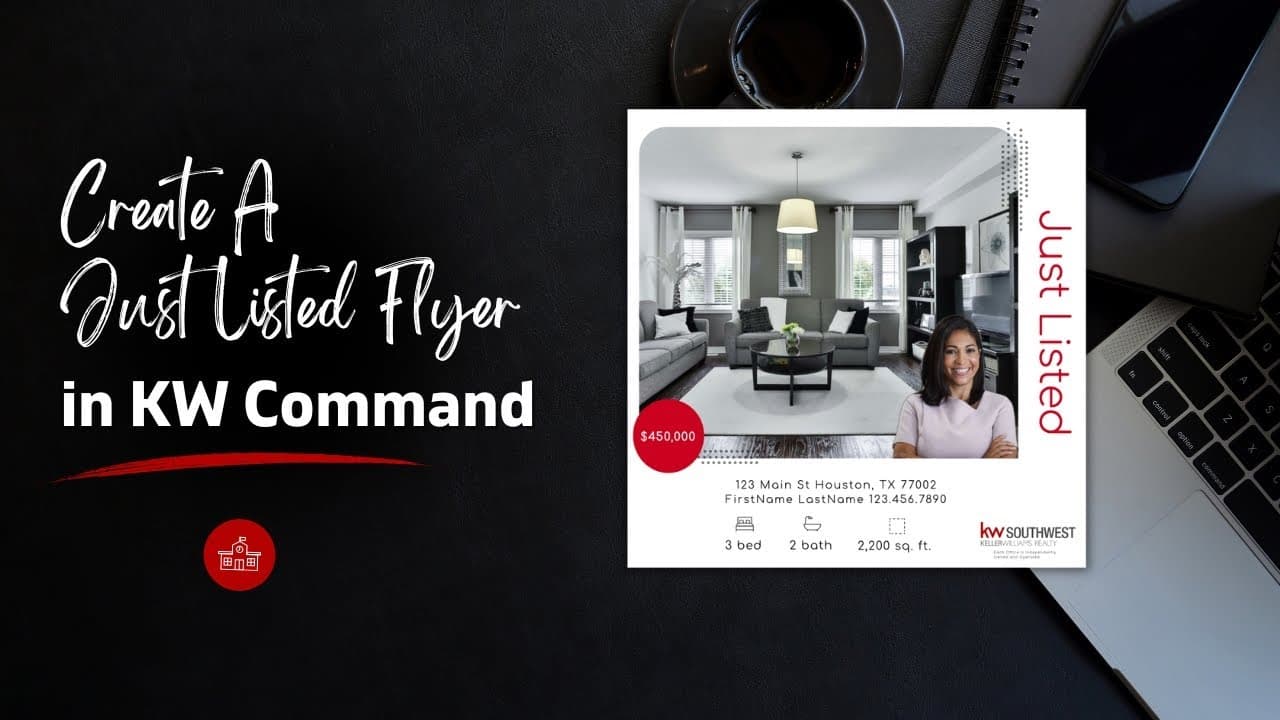
Creating a professional listing flyer is essential for marketing your properties effectively. KW Command provides easy-to-use tools to help you create stunning flyers that showcase your listings.
Prefer to watch instead?
Here is a video How to Create a Just Listed Flyer in KW Command (Step-by-Step for Real Estate Agents)
Step 1: Access KW Command's Design Studio
1. Navigate to https://agent.kw.com and sign in
2. Click on the Designs icon in the left navigation menu
3. Choose "Print" or "Social" and click Continue
*Note: Print format works best for listing flyers that will be physically printed or shared as PDFs, while Social format is optimized for digital sharing on social media platforms.*
Step 2: Select a Listing Flyer Template
1. Search for "Listing" in the template search bar
2. Browse available templates and select one that matches your style
3. Click on your chosen template to begin editing
*Tip: Look for templates that prominently feature property photos and key details.*
Step 3: Customize Your Listing Content
1. Add your listing photos:
- Upload high-quality property images
- Arrange photos to highlight the best features
- Include both exterior and interior shots
2. Input property details:
- Price and address
- Square footage
- Number of bedrooms and bathrooms
- Key features and amenities
- Property description
*Pro tip: Use compelling headlines and bullet points to make information easy to scan.*
Step 4: Add Professional Branding
1. Include your professional headshot and contact information
2. Add your Market Center's required branding elements
3. Incorporate your personal logo if applicable
4. Ensure all required disclaimers and MLS information are present
*Tip: Maintain consistent branding with KW colors and professional fonts.*
Step 5: Export and Share
1. Click Download in the top-right corner
2. Choose your preferred format:
- PDF for high-quality prints
- JPG/PNG for digital sharing
3. Save the file to your device
Distribution Ideas:
- Print copies for property showings
- Email to potential buyers
- Share on social media platforms
- Include in listing presentation packages
Frequently Asked Questions (FAQ)
What are the best dimensions for a listing flyer?
Standard letter size (8.5" x 11") is most common and practical for both digital and print distribution.
How can I ensure my flyer stands out?
Use high-quality photos, clear typography, and focus on unique property features. Keep the design clean and professional.
What information is required on a listing flyer?
Include property details, price, your contact information, brokerage information, required disclaimers, and MLS numbers when applicable.
Can I save my design as a template?
Yes, save your customized design as a template for future listings by using the "Save as Template" option in the Designs dashboard.
How do I ensure my flyer is compliant?
Always include required logos, disclaimers, and fair housing information. When in doubt, have your MCA or broker review the flyer.
What are the recommended dimensions for social media listing flyers?
For Instagram feed posts: 1080 x 1350 pixels (1:1 square ratio)
*Update: As of March 2024, Instagram feed posts now support 1080 x 1350 pixels (4:5 vertical ratio) as the optimal size for maximum feed visibility.*
For Instagram Stories: 1080 x 1920 pixels (9:16 vertical ratio)
For Facebook feed posts: 1200 x 630 pixels (landscape ratio)
For LinkedIn: 1200 x 627 pixels (similar to Facebook)
For Twitter/X: 1600 x 900 pixels (16:9 ratio)
*Pro tip: When creating flyers for social media, ensure text is large enough to be readable on mobile devices and keep important information away from the edges.*
How can I get premium printing services for my listing flyers?
For professional-grade printing services and premium paper options, email team@agentmarketingdesk for assistance and pricing details.
Frequently asked questions
How do I create a Just Listed flyer in KW Command?+
Sign in at agent.kw.com, click the Designs icon in the left navigation, choose Print or Social and click Continue, then search Listing in the template search bar and pick a template to edit.
Should I pick Print or Social?+
Print works best for flyers you will physically print or share as PDFs. Social is optimized for posting on social platforms.
What are the best dimensions for a printed listing flyer?+
Standard letter size, 8.5 by 11 inches, is the most practical for both print and digital distribution.
What size should social media listing flyers be?+
Instagram feed posts: 1080 by 1350 pixels, a 4:5 vertical ratio. Instagram Stories: 1080 by 1920, 9:16. Facebook feed: 1200 by 630. LinkedIn: 1200 by 627. X: 1600 by 900.
What information is required on a listing flyer?+
Property details, price, your contact information, brokerage information, required disclaimers, and MLS numbers where applicable.
How do I make sure my flyer is compliant?+
Include the required logos, disclaimers, and fair housing information. If you are unsure, have your MCA or broker review it before it goes out.
Can I save my design as a template?+
Yes. Use the Save as Template option in the Designs dashboard so future listings start from your branding and layout.
How do I make the flyer readable on a phone?+
Keep text large enough to read on mobile and keep important information away from the edges, since social platforms crop differently.