Create a Lead Management Rule for Incoming Leads in Command (Solo Agents)
Lead management rules in Command allow solo agents to automatically manage incoming leads, ensuring a streamlined workflow for follow-up and nurturing. Follow the steps below to…
TAThe AMS TeamEditorial Team · January 9, 2025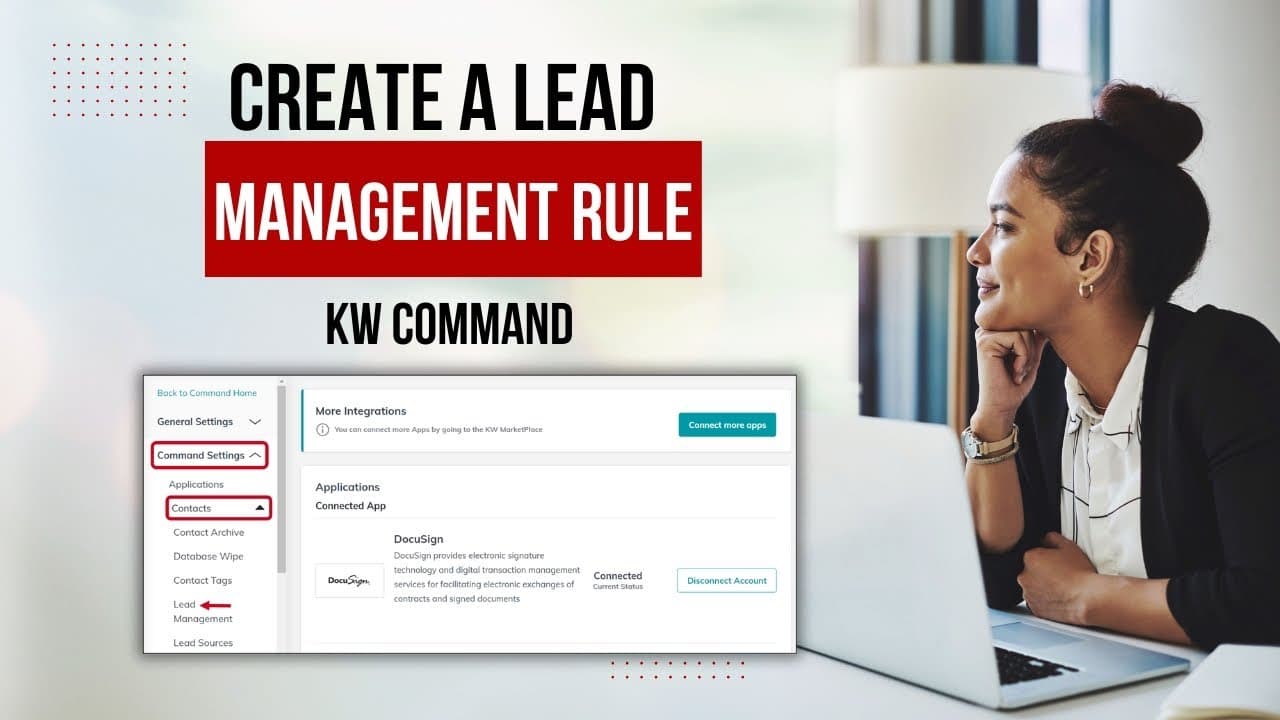
Overview
Lead management rules in Command allow solo agents to automatically manage incoming leads, ensuring a streamlined workflow for follow-up and nurturing. Follow the steps below to set up your lead management rule.
Steps to Create a Lead Management Rule
1. Log in to Command
- Go to https://agent.kw.com.
- Enter your KW login credentials.
2. Access Lead Management Rules
- Click on your name or profile icon in the top right corner of the screen.
- From the dropdown menu, select Settings.
- In the left-hand menu, select Command Settings, then Lead Routing, and click Lead Management Rules.
3. Create a New Rule
- Click the Create Rule button.
- Name your rule (e.g., “New Buyer Leads” or “Open House Follow-Up”).
4. Set the Rule’s Trigger Criteria
- Under Trigger, select the conditions that will activate this rule:
- Lead Source: Choose where the lead originates (e.g., KW App, Facebook Ads).
- Lead Type: Specify if the lead is a buyer, seller, or both.
- Tags: Optionally, assign tags to help categorize leads.
5. Assign Automatic Actions
- Select the actions that should happen when the rule is triggered:
- Automatically assign a tag (e.g., “Hot Lead” or “Needs Follow-Up”).
- Add the lead to a SmartPlan for automated follow-up sequences.
- Mark the lead for manual action if no other automation is desired.
6. Review and Activate the Rule
- Double-check the rule’s settings to ensure it aligns with your workflow.
- Click Save to activate the rule.
- Your new lead management rule will now run automatically.
Best Practices
- Define Clear Triggers: Ensure your criteria reflect specific lead behaviors or sources to avoid overlap between rules.
- Leverage Tags: Use consistent tagging to maintain organization and easily segment your leads.
- Monitor Lead Activity: Regularly review the performance of your rules to identify potential improvements.
FAQs
Q: What are lead management rules?
Lead management rules in Command allow solo agents to automate workflows for organizing, tagging, and assigning incoming leads to SmartPlans.
Q: Can I create multiple rules for different scenarios?
Yes, you can create separate rules for different lead sources or types to align with your marketing and follow-up strategies.
Q: Can I edit or delete a rule after creating it?
Yes, navigate to Settings > Lead Management Rules, find the rule you want to modify, and click Edit or Delete.
Q: What happens if no rule matches a lead?
Leads that don’t match any rule will remain in the Leads section in Command, where you can manage them manually.
Q: Can I test a rule before applying it?
Yes, create a test lead and ensure it meets the criteria of the rule to verify that it triggers the intended actions.
Q: How do I assign leads to a SmartPlan automatically?
While setting up your rule, select the SmartPlan action and choose the specific SmartPlan to add leads automatically.
Q: How do I ensure leads are followed up on quickly?
Enable notifications in Command and use auto-responses as part of your SmartPlans to provide immediate engagement.
Q: Can I set up rules for incoming leads from my KW Agent Website?
Yes, you can create lead management rules specifically for leads submitted through forms on your KW Command Agent Website. These rules allow you to automatically tag, assign, and route website leads for streamlined follow-up and organization.
Additional Resources {toggle="true"}
Frequently asked questions
What are lead management rules in Command?+
They automate what happens to an incoming lead: organizing it, tagging it, and assigning it to a SmartPlan without you touching it manually.
Where do I create a lead management rule?+
Log in at agent.kw.com, click your name in the top right and select Settings. In the left-hand menu choose Command Settings, then Lead Routing, then Lead Management Rules, and click Create Rule.
What can trigger a rule?+
Lead source such as the KW App or Facebook Ads, lead type such as buyer or seller, and optionally tags you assign to categorize leads.
What actions can a rule take?+
It can automatically apply a tag such as Hot Lead or Needs Follow-Up, add the lead to a SmartPlan for an automated follow-up sequence, or mark the lead for manual action.
Can I create more than one rule?+
Yes. Create separate rules for different lead sources or types. Keep the trigger criteria specific so rules do not overlap.
Can I edit or delete a rule later?+
Yes. Go to Settings, then Lead Management Rules, find the rule, and click Edit or Delete.
What happens to a lead that matches no rule?+
It stays in the Leads section in Command for you to handle manually.
Can I test a rule before relying on it?+
Yes. Create a test lead that meets the rule criteria and confirm it triggers the actions you expect.
Do rules work for leads from my KW Agent Website?+
Yes. You can create rules specifically for leads submitted through forms on your KW Command Agent Website, then tag, assign, and route them automatically.