Create a Listing Presentation in KW Command
Creating a compelling listing presentation is essential for making a strong impression on potential clients. With KW Command Designs, you have access to professionally crafted…
TAThe AMS TeamEditorial Team · January 28, 2025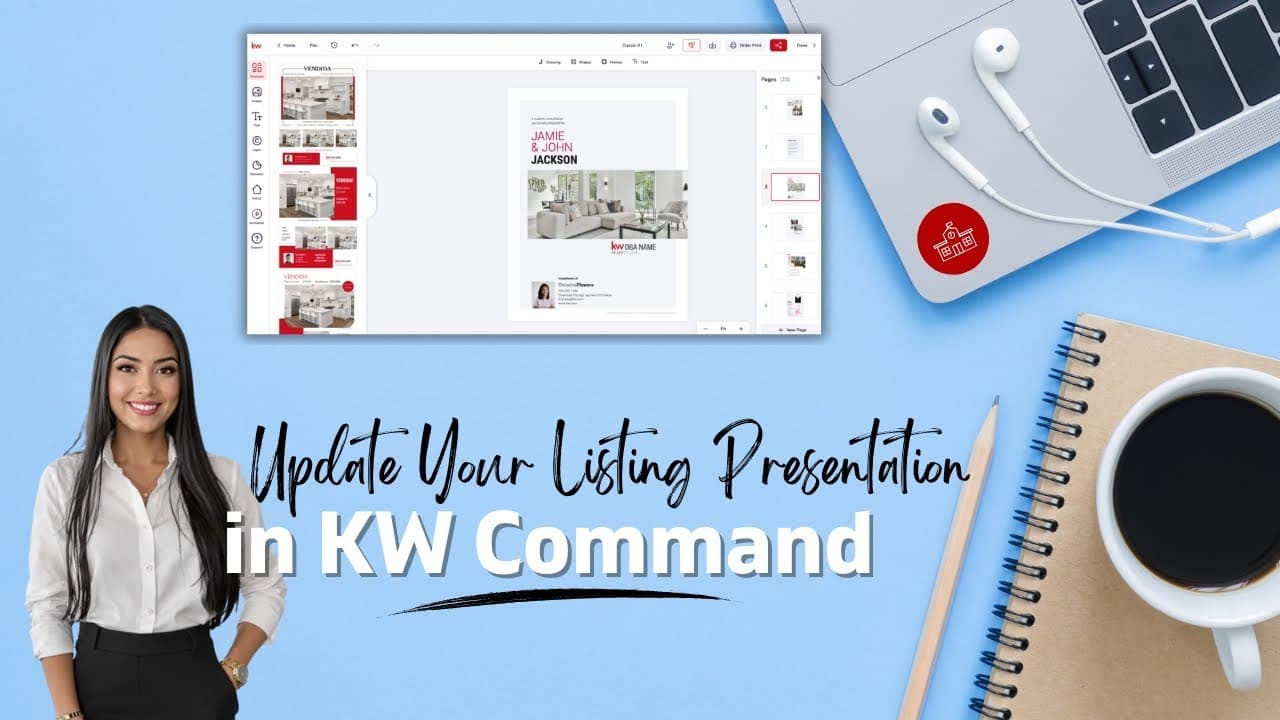
Creating a compelling listing presentation is essential for making a strong impression on potential clients. With KW Command Designs, you have access to professionally crafted templates that you can customize to reflect your brand and meet your clients' needs. This guide will take you through the process of creating an effective listing presentation using the KW Designs tool, ensuring it aligns with your real estate marketing strategies.
Here is a video How to Update Your Listing Presentation in KW Command \| Step-by-Step for Keller Williams Agents
Step-by-Step Instructions:
1. Log in to https://agent.kw.com with your Keller Williams login credentials.
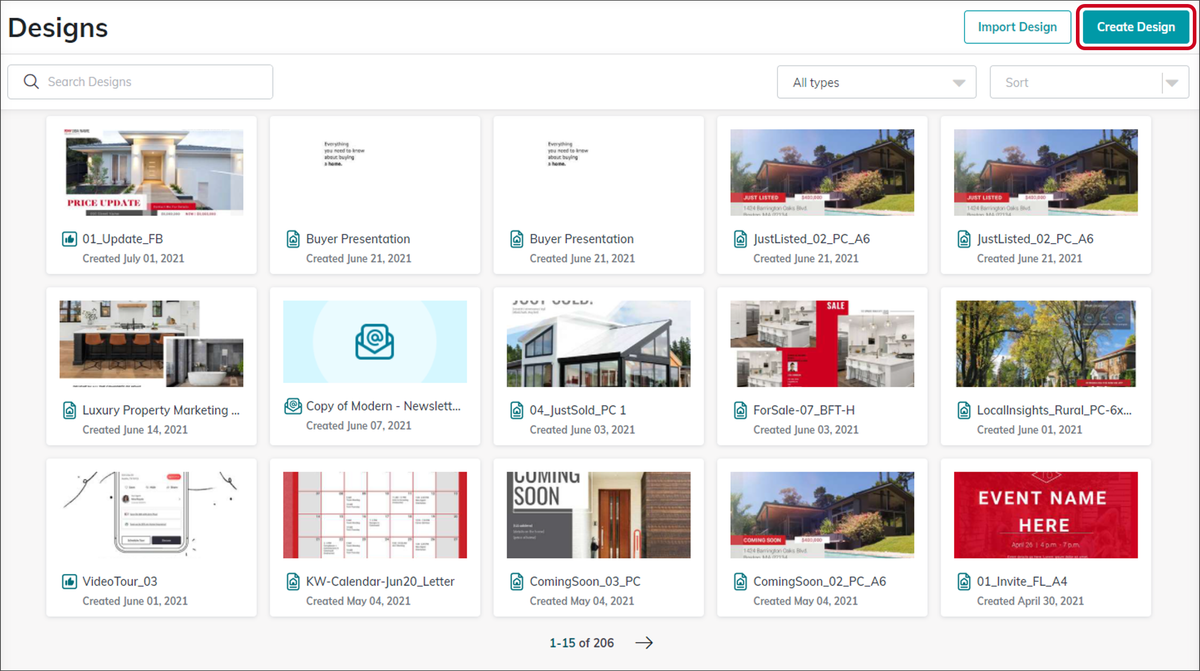
2. Click the Designs icon on the left sidebar.
3. At the top right of this screen, click Create Design.
4. Choose Print and click Continue.
5. Log in to the Designs Editor with your KW login credentials.
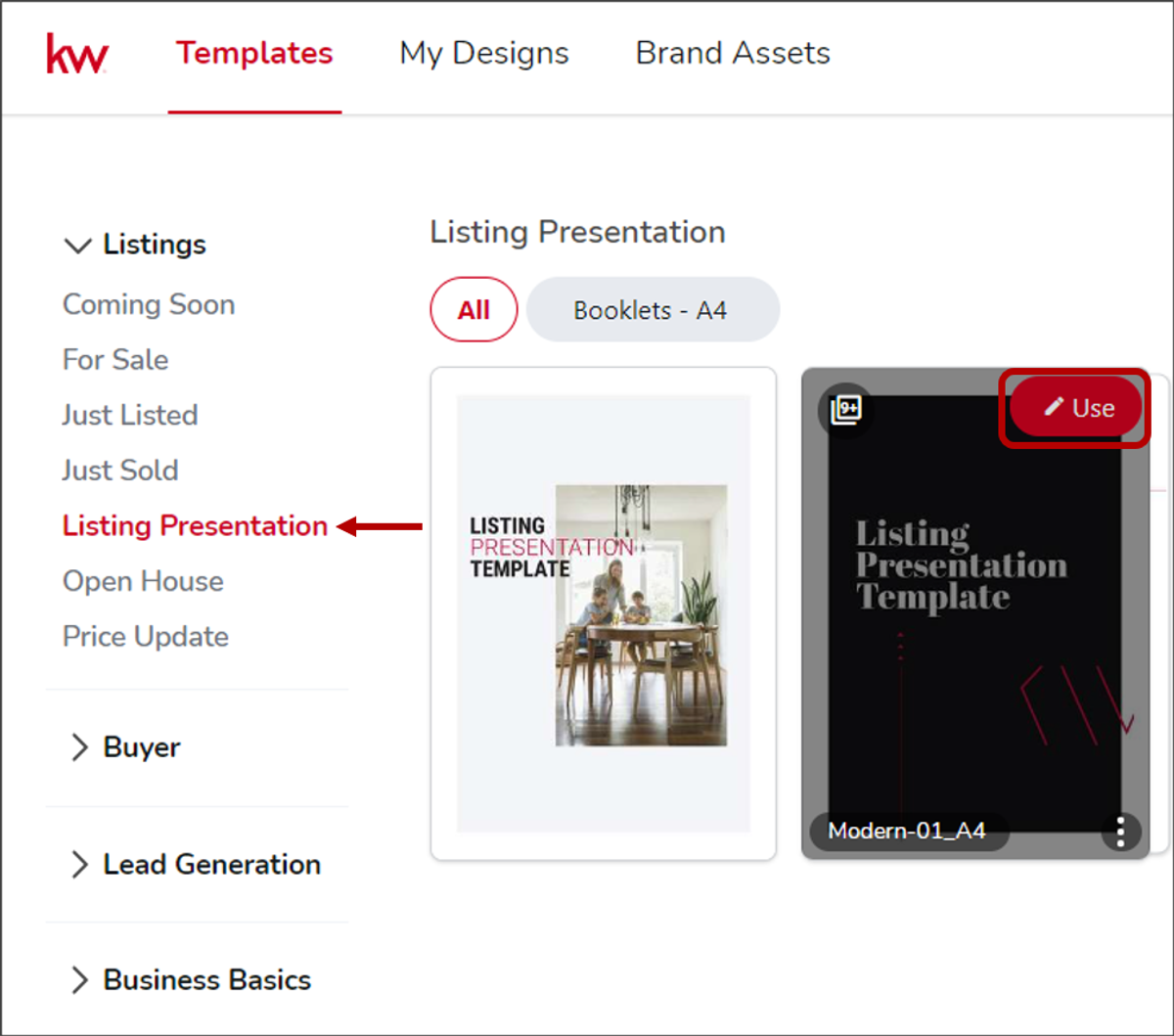
6. Find and select the Listing Presentation category on the left side of the page, and click Use on the specific template you want to use.
Customization Options:
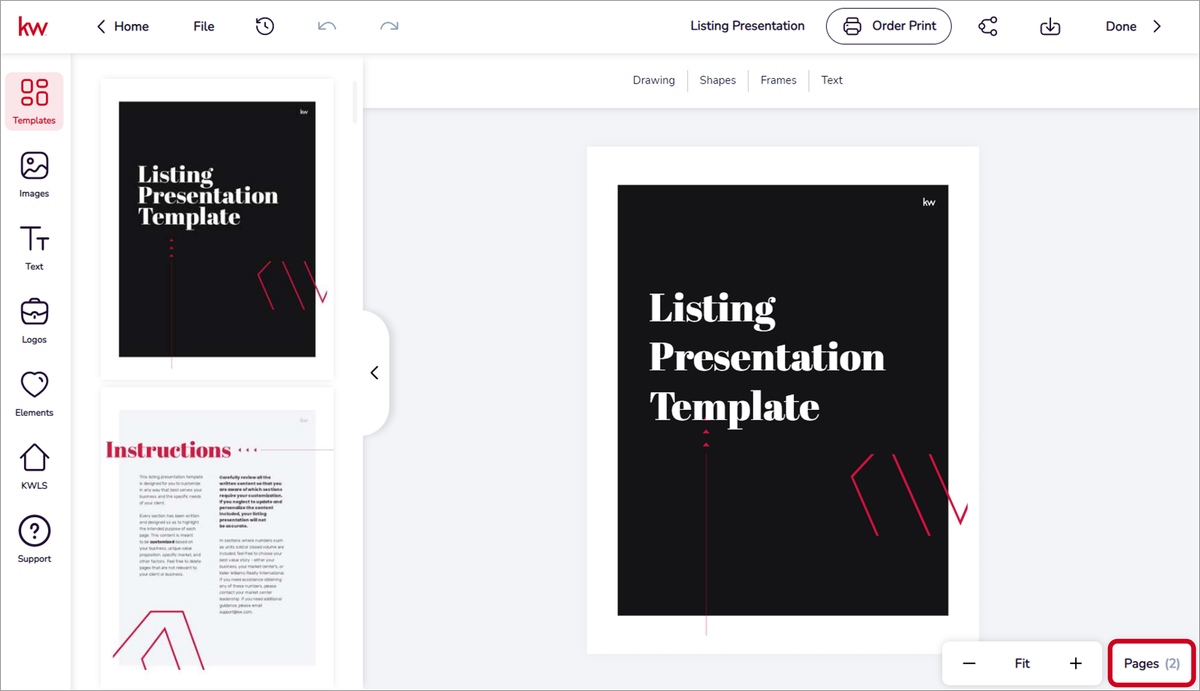
- Add, delete, and reorder pages as needed.
- To add a blank page, hover over the page you want to add on the left side, and click Add New Page.
- To delete a page, click the arrow beside Pages, select the desired page, click Delete, and confirm.
- To duplicate a page, click the arrow beside Pages, select the desired page, and click Duplicate.
- To reorder a page, click the arrow beside Pages, drag and drop the page to the desired position.
Key Takeaways:
- Save your listing presentation to your template library in Designs for future use.
- Learn more about the Design editor, saving, downloading, and sharing your design, and using the KWLS panel in the Design editor.
FAQs:
1. How do I access the Designs Editor? Answer: Log in to https://agent.kw.com with your KW login credentials, click the Designs icon, and follow the prompts to access the editor.
2. Can I customize the templates? Answer: Yes, you can add, delete, reorder, and duplicate pages to tailor the presentation to your needs.
3. Where can I find additional resources? Answer: Visit the KW Answers page for guides on using the Design editor, saving and sharing designs, and more.
Here is a great blog post, “What Marketing Should Be Included in a Listing Presentation?” Link here →
Frequently asked questions
How do I create a listing presentation in KW Command?+
Log in at agent.kw.com, click the Designs icon on the left sidebar, click Create Design at the top right, choose Print and click Continue. Sign in to the Designs Editor, select the Listing Presentation category, and click Use on the template you want.
Can I customize the templates?+
Yes. You can add, delete, reorder, and duplicate pages to fit what a specific listing needs.
How do I add or remove a page?+
To add one, hover over the page you want it next to on the left side and click Add New Page. To delete, click the arrow beside Pages, select the page, click Delete, and confirm.
How do I reorder pages?+
Click the arrow beside Pages, then drag and drop the page into the position you want.
Can I reuse a presentation I built?+
Yes. Save it to your template library in Designs so you can start from it next time instead of rebuilding.