How to Customize Your Open House Flyer Using Canva (Step-by-Step)
Creating a professional open house flyer doesn’t have to be complicated. In this tutorial, we’ll walk you through how to customize our Canva Open House Flyer Template, perfect for…
TAThe AMS TeamEditorial Team · April 29, 2025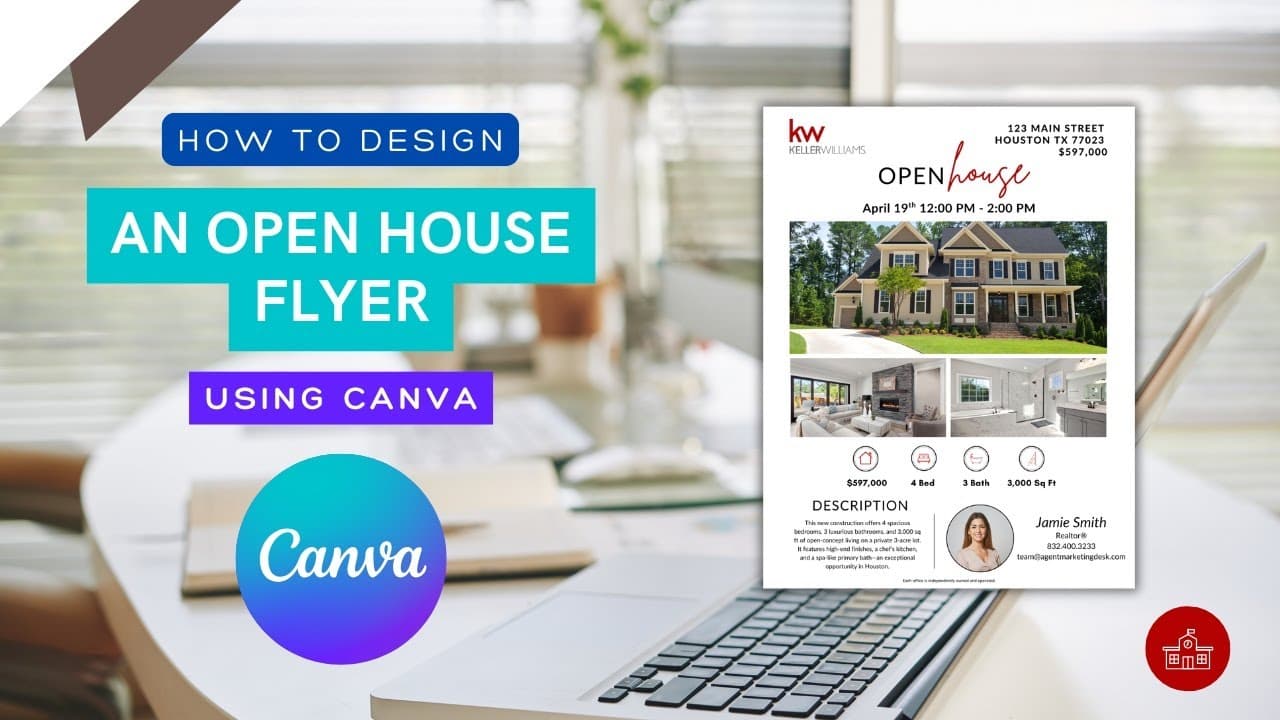
Creating a professional open house flyer doesn’t have to be complicated. In this tutorial, we’ll walk you through how to customize our Canva Open House Flyer Template, perfect for real estate agents who want a clean, polished look without hiring a designer.
One of the key principles from *The Millionaire Real Estate Agent* (MREA) by Gary Keller is the power of building systems for every part of your business, including your marketing. Creating open house flyers with Canva is a simple way to put that into action. Instead of starting from scratch every time, you can use a consistent system that saves you time, strengthens your brand, and keeps your business moving forward.
Step 1: Access the Canva Template
Start by opening the flyer template using this link:
👉 KW Open House Flyer Template
If you don’t have a Canva account yet, you’ll be prompted to create a free one. Once you're logged in, click "Use Template" to open a copy you can customize.
Pro Tip: If you want even more options, you can also find other open house flyer templates by going to Canva and typing "Open House" into the search bar. Canva has a wide variety of layouts you can explore and customize based on your brand and style.
Step 2: Replace the Listing Photos
Click on any photo in the template to select it.
Then, click "Replace Image" and upload your listing photos.
Tip: Choose 3-4 high-quality images that show off the best features, like the exterior, kitchen, living room, or primary bedroom.
Step 3: Update the Property Details
Next, update all the text with your property information:
- Property Address
- Price
- Open House Date and Time
- Key features (like bedrooms, bathrooms, and square footage)
Simply click on the text boxes and type in your details.
Step 4: Add Your Branding
Personalize the flyer with your brand by:
- Uploading your headshot
- Adding your name, phone number, email, and website
- Swapping out the logo if needed to match your brokerage
If you're a Canva Pro user, you can easily pull from your saved Brand Kit for an even faster update.
Step 5: Customize Fonts and Colors (Optional)
Want the flyer to match your brand even more?
Click any element to change fonts, colors, or layouts using Canva’s editing tools.
Tip: Stick with clean, simple fonts for a polished and professional look.
Step 6: Download Your Flyer
Once your flyer looks the way you want, it’s time to download it.
Click the Share button in the top right, then choose Download.
- PDF Print is best if you plan to print your flyer.
- PNG is ideal for posting on social media or emailing digitally.
Step 7: Share Your Open House Flyer
You’re ready to promote your open house!
Ways to use your flyer:
- Post on Instagram, Facebook, and LinkedIn
- Email it to your database or sphere
- Print copies for the office or distribute at local businesses
- Upload it to your MLS listing (if allowed)
Here is a video on how to create an open house flyer using Canva
Want a full walkthrough showing you exactly how to edit the flyer?
🎥 Watch the tutorial on YouTube
Related Resource: Why Use Canva for Open House Flyers?
If you want to learn *why* Canva is such a great tool for real estate agents, check out our full blog post here:
👉 Why Real Estate Agents Should Use Canva to Create Open House Flyers
FAQ: Canva Open House Flyer Template for Real Estate Agents
1. Can I create an open house flyer using Canva?
Yes! Canva is one of the easiest tools for creating professional-looking open house flyers, even if you don't have any design experience. You can start with a template, upload your listing photos, update the text, and have a polished flyer ready in minutes.
2. Can I use a Canva flyer for Instagram, Facebook, and print?
Absolutely. After you customize your flyer, you can download it in different formats depending on where you want to share it.
- For Instagram and Facebook, download as a PNG or JPEG.
- For printing, download as a PDF Print for the highest quality.
3. Do I need a Canva Pro account to use this open house flyer template?
No, you can customize this flyer using a free Canva account. Canva Pro users have extra features like Brand Kits, custom fonts, and access to premium design elements, but they are not required for this template.
4. Can I change the fonts, colors, and layout of the flyer?
Yes! The entire template is fully customizable. You can adjust fonts, swap colors, move elements, and update images to match your personal brand or brokerage style.
5. Can I use this template for multiple listings?
Yes. Once you edit the template for one listing, you can simply duplicate the design in Canva and update it for future listings, saving you time and keeping your marketing consistent.
6. How do I download the flyer after customizing it?
Click the Share button in the top right corner of Canva, then select Download. Choose PDF Print for physical flyers or PNG/JPEG for online sharing.
7. Where can I find the video tutorial for using the open house flyer template?
You can watch the full step-by-step tutorial here:
🎥 Watch the tutorial on YouTube
8. Where do I access the open house flyer template?
You can grab the template here:
📎 KW Open House Flyer Template for Canva
Want more simple marketing systems like this? That’s what we cover at Agent Marketing School.
Frequently asked questions
Do I need a Canva Pro account to use the open house flyer template?+
No. You can customize the template with a free Canva account. Pro adds extras like Brand Kits, custom fonts, and premium design elements, but none of those are required.
How do I replace the listing photos?+
Click any photo in the template to select it, then click Replace Image and upload your own. Three to four high-quality shots work best: the exterior, kitchen, living room, and primary bedroom.
Can I change the fonts, colors, and layout?+
Yes. The whole template is customizable. Click any element to adjust fonts, swap colors, or move things around to match your brand or brokerage style.
What format should I download for print versus social?+
Click Share in the top right, then Download. Choose PDF Print for physical flyers, and PNG or JPEG for Instagram, Facebook, and email.
Can I reuse the template for other listings?+
Yes. Once you have edited it for one listing, duplicate the design in Canva and update the details for the next one. That is what turns it into a repeatable system rather than a one-off.
Where should I share the finished flyer?+
Post it on Instagram, Facebook, and LinkedIn, email it to your database, print copies for the office and local businesses, and upload it to your MLS listing if that is allowed.
What if I want a different layout?+
Search Open House in Canva to browse other flyer layouts you can customize the same way.