How to Make an Open House Flyer in KW Command
Whether it's your own listing or you're hosting an open house for a listing agent, KW Command makes it simple to create a professional flyer that helps you promote the property…
TAThe AMS TeamEditorial Team · April 4, 2025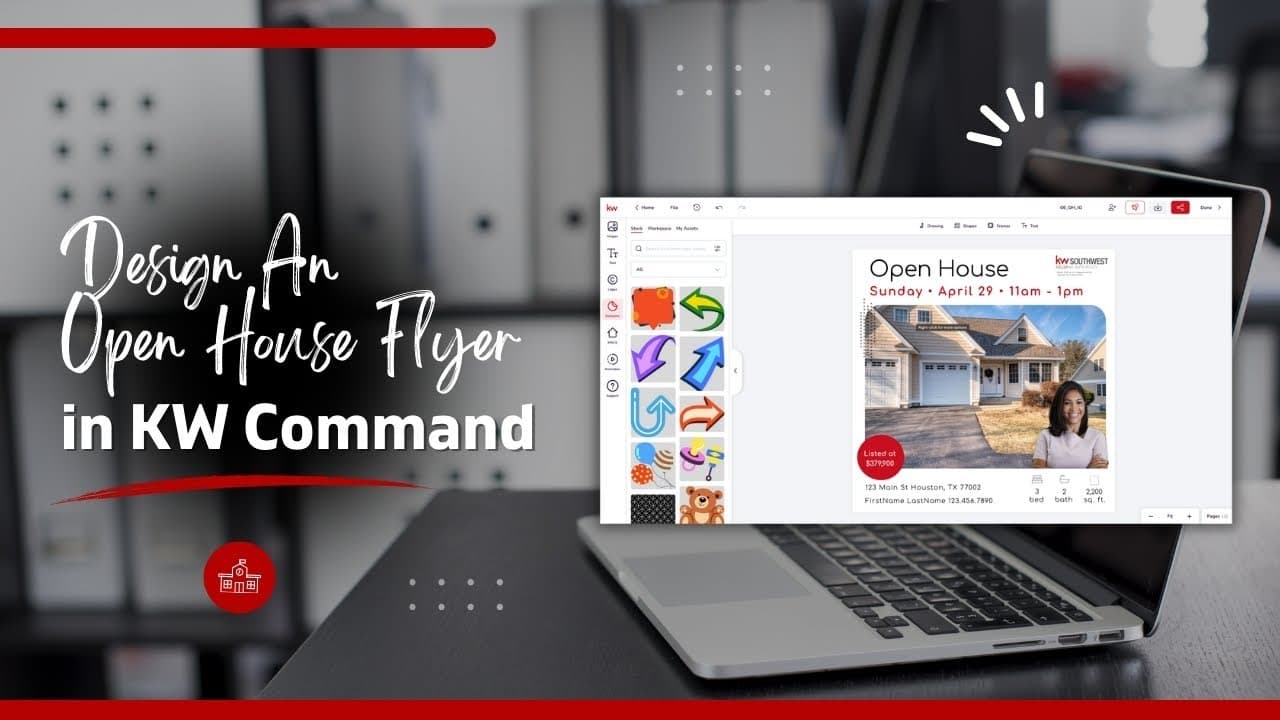
Whether it's your own listing or you're hosting an open house for a listing agent, KW Command makes it simple to create a professional flyer that helps you promote the property and attract potential buyers.
Prefer to watch instead?
Watch our video: How to Make an Open House Flyer in KW Command (Step-by-Step for Real Estate Agents)
Step 1: Log Into KW Command and Access Designs
1. Go to https://agent.kw.com and log in with your Keller Williams credentials
2. Click on the Designs icon (paintbrush) in the left-hand menu
3. Click the + (plus) icon in the bottom-right corner
4. Select “Print” and click Continue
*Tip: Use “Print” for flyers you want to physically print or email as a PDF. Use “Social” for versions formatted specifically for platforms like Instagram or Facebook.*
Step 2: Choose an Open House Flyer Template
1. In the search bar, type “Open House”
2. Browse the available flyer templates and pick one that fits your layout and brand
3. Click the template to open it in the KW Command editor
*Tip: If you don’t find the perfect match under “Open House,” try searching “Listing”, many of those templates can be easily adapted.*
Step 3: Add Listing Details and Photos
1. Replace placeholder images with your own listing photos
- If the listing is connected through KWLS (MLS), you can pull in the data and images directly
- Otherwise, upload the photos manually and type in the listing details
2. Update the flyer with your Open House information:
- Date and time
- Address and price
- Property features (bedrooms, bathrooms, square footage, highlights)
*Copy tip: Use bold, eye-catching headlines like “Tour This Beautiful 4-Bedroom Home” or “Just Listed – Open House This Weekend.”*
Step 4: Add Your Branding and Contact Information
1. Insert your name, phone number, email, headshot, and personal logo if applicable
2. Make sure your Market Center’s DBA logo is included
3. Use Keller Williams brand colors (red, black, gray, and white) for consistency
*Tip: A clean, simple layout with ample white space is easier to read and gives your flyer a more professional appearance.*
Step 5: Download, Print, or Share
1. Click Download in the top-right corner of the editor
2. Choose your file format:
- PDF for Print – ideal for physical flyers
- JPEG or PNG – great for digital use
3. Save the file to your computer or device
Next steps:
- Print flyers to bring to the open house and share with local businesses
- Post the flyer on your social media accounts
- Send it out via email to your contacts
- Add it to a SmartPlan if you’re following up with leads
Frequently Asked Questions (FAQ)
Can I edit the flyer later if I need to change the date or time?
Yes. All your designs are saved in the Designs dashboard. Open the file, make your changes, and re-download the updated version.
How can I create an open house flyer?
We have a complete step-by-step guide available that walks you through creating professional open house flyers in KW Command. Visit our detailed tutorial at How to Make an Open House Flyer in KW Command for instructions, tips, and best practices. Link here
What if my MLS isn’t connected to KW Command?
You can still upload your listing photos manually and type in the details. The KWLS integration just saves time by pulling in existing data.
How do I make sure the flyer is compliant with KW and local guidelines?
Always include your Market Center’s DBA logo and ensure your contact info is accurate. For added confidence, ask your MCA or broker to review your flyer before printing.
Can I send the flyer to a print service directly from KW Command?
Not directly. You’ll need to download the PDF file and upload it to your preferred printing service (like FedEx, Staples, or a local vendor). Agent Marketing Desk offers premium printing. Email team@agentmarketingdesk.com or visit https://agentmarketingdesk.com/
Is there a mobile version for social media sharing?
You can create a separate version using the “Social” design format in Command or resize the downloaded flyer using Canva or another tool to fit Instagram or Facebook specs.
How many flyers should I print for an open house?
A good rule of thumb is to print 20-25 flyers for every hour of your open house. For a 3-hour open house, prepare 60-75 flyers. Always print extra to distribute to neighbors and local businesses beforehand.
What essential information must be included on an open house flyer?
Your flyer must include: property address, open house date and time, price, key features, your contact information, and required broker/agency information. Don't forget fair housing disclaimers and MLS numbers where applicable.
Can I save my flyer design as a template for future use?
Yes. In the Designs dashboard, click the three dots next to your design and select "Save as Template." This creates a reusable version that maintains your branding and layout preferences.
What's the best paper to use for printing open house flyers?
For professional results, use 32 lb color laser paper for single-sided flyers or 28 lb for double-sided. Gloss or semi-gloss finish makes photos pop, while maintaining readability. Standard letter size (8.5" x 11") works best.
How can I track the effectiveness of my open house flyers?
Include a QR code or unique URL on your flyer that leads to a landing page. This allows you to track how many people visit your website from the flyer. You can also ask visitors at the open house how they heard about it.
Link on How to Make an Open House Flyer in KW Command
Frequently asked questions
How do I start an open house flyer in KW Command?+
Log in at agent.kw.com, click the Designs icon in the left-hand menu, click the plus icon in the bottom-right corner, select Print and click Continue. Then search Open House in the template search bar.
Should I choose Print or Social?+
Choose Print for flyers you will physically print or email as a PDF. Choose Social for versions already formatted for Instagram or Facebook.
What if my MLS is not connected to Command?+
You can still upload listing photos manually and type in the details. The KWLS integration only saves time by pulling existing data and images in for you.
Can I edit the flyer later if the date or time changes?+
Yes. All designs are saved in the Designs dashboard. Open the file, make your changes, and download the updated version.
What information has to be on an open house flyer?+
The property address, open house date and time, price, key features, your contact information, and the required broker and agency information. Include fair housing disclaimers and MLS numbers where applicable.
How do I keep the flyer compliant?+
Always include your Market Center's DBA logo and check that your contact information is accurate. Having your MCA or broker review it before printing is worth the extra step.
How many flyers should I print?+
A good rule of thumb is 20 to 25 flyers per hour of your open house, so 60 to 75 for a three-hour event. Print extra to hand out to neighbors and local businesses beforehand.
Can I print directly from KW Command?+
No. Download the PDF and send it to your preferred print service. Agent Marketing Desk offers premium printing at agentmarketingdesk.com or team@agentmarketingdesk.com.
Can I save my flyer as a reusable template?+
Yes. In the Designs dashboard, click the three dots next to your design and select Save as Template. That keeps your branding and layout for next time.
How do I track whether the flyer worked?+
Put a QR code or a unique URL on it pointing to a landing page, then watch how many visits come through. Asking open house visitors how they heard about it fills in the rest.